FAQ
FAQFrequently Asked Questions (FAQ)
 | Due to January/February 2024 site maintenance this FAQ may be out of date. Staff are working as quickly as possible to recreate these pages so that they correspond with the current site environment. If you have an immediate need for assistance, please contact us. |

General FAQ:
FAQ Regarding ACBS:
Additional Information:
Welcome to the ACBS Website Help Center
Welcome to the ACBS Website Help Center|
|
Due to January/February 2024 site maintenance this FAQ may be out of date. Staff are working as quickly as possible to recreate these pages so that they correspond with the current site environment. If you have an immediate need for assistance, please contact us. |
Selected Help Topics:
Website FAQ:
See a list of frequently asked questions in the box below. When we say that the site content is member driven, we really mean it! That even includes this page. So, if you are a logged in member:
- To suggest a question for someone to answer, click on the "add new comment" link at the bottom of this page and enter your question.
- To provide a question and an answer to this FAQ, click on the "add child page" link at the bottom of this page.
How do I access file attachments, publications, and other downloads?
How do I access file attachments, publications, and other downloads?Some pages on this site will refer to attached or downloadable files. If you are not a paid member of the Association for Contextual Behavioral Science (ACBS), you will not be able to view or download these files. To gain access to such files (including the full-text downloads of many of the publications listed in the Publications section of the site), after you're logged in, you must apply for paid ACBS membership (review our values-based dues sytem). After you have completed the membership application form and paid your membership dues, you should be able to access all of the downloadable files on the site.
Occasionally a member has problems opening the PDFs. In this day and age we all have different versions of different software, but here are a few things to try.
- 1.) Try updating your browser to the latest version (Like FireFox for example).
- 2.) Try using something other than Internet Explorer (Like Mozilla, FireFox, Opera, Avant, etc.) Sometimes that's the easiest solution.
- 3.) Don't just click the link and try to open it. Right click the PDF link, select "Save target as" or "Save Link As" and save the file to your computer, then open it.
How do I allow people to email me?
How do I allow people to email me?It's easy to allow visitors to the site to email you (and without revealing your email address, which protects you from spammers):
- Login to the site
- Click on the "my account" link in the menu below your username on the right side of the screen
- Click on the "Edit" tab
- Scroll down to the bottom of the screen and click on the "Personal contact form" checkbox
Now when site visitors view your profile, they will see a "Contact" tab that allows them to send you an email via a web-based form. Check out the a profile for an example of this.
How do I attach a file to a page I have created?
How do I attach a file to a page I have created?In order to do this you will need to be logged into the website as a member of ACBS. Also, you can only attach files to pages you have created. If you have a file which would go nicely on a page you did not create, please contact the website staff here.
For a visual demonstration of attaching files, with audio instructions, view this video:
How do I change my ACT therapist directory information?
How do I change my ACT therapist directory information?How do I change my “Find an ACT Therapist” directory information?
1) Log in with your username and password.
2) Click on your name in the upper left corner, where it says “Hello YourNameHere!”
3) Click “Edit”
4) Click “Contact Information”
5) Scroll down the page to view information which you can change.
6) Be sure to click “save” at the bottom of the page to save your changes.
Note: Checking “Yes” in the “ACT Therapist” box displays your information in the therapist directory. If you uncheck this box, you will be removed from the directory.
Note: If you have difficulty finding your state as an option in our contact information, please click here to learn how to fix this.
How do I change my profile, password, account, or contact information?
How do I change my profile, password, account, or contact information?To change your profile/password/contact/account information, simply do this:
- Login to the site.
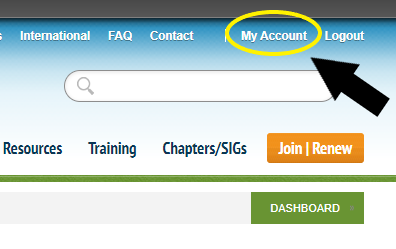
- Click on the My account link on the top right corner of the screen.
- Click on the Edit tab at the top of your profile, under your username.
- Notice that two new tabs appear below the Edit tab: Account, and Contact Information
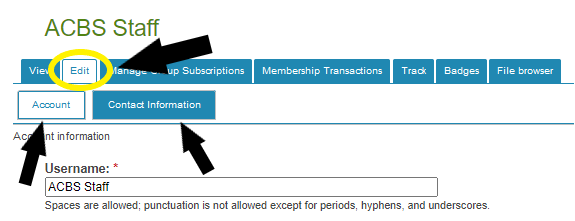
- Click the Account tab to change your account settings as desired, or click on the Contact Information tab to change your personal information.
- Click on the Save button at the bottom of each page when you are finished editing that page.
How do I contribute something to the site?
How do I contribute something to the site?Individuals with basic site membership can contribute to the discussion forums by following the appropriate links in that section of the site.
Only paid members of the Association for Contextual Behavioral Science can upload new content to the site:
- If you just want to comment on existing content, simply click on the "add new comment" link at the bottom of the page or click on the "reply" link next to an existing comment. Your comment or reply will then appear at the bottom of that page.
- If you want contribute new content, you have two choices. First, you can locate where your content fits most logically. For example, if you want to create a page that describes your academic training program in ACT, you would click on the main Training link, then Academic Training & Research Labs. At the bottom of the Academic Training page, you could click on the "add child page" link to create a new page for your program. Alternatively, you can just click on the "create content" link that appears on the right side of your screen (below your username). From there you can choose the type of content you want to create and place it in the site hierarchy appropriately using the "outline" drop-down menu.
And that's it! Additional prompts and instructions are provided on most of the content creation pages. Don't worry too much about messing anything up -- the site editors can also go back and correct any mistakes you made. Also, you will be able to edit any content you create any time you wish! Just return to the page and click on the "Edit" tab at the top. If you have questions about contributing content to the site, please do not hesitate to contact the ContextualScience.org webmaster.
How do I create a hyperlink?
How do I create a hyperlink?Hyperlinks are very useful components of webpages which allow you to link to other places on the internet. Hyperlinks can connect to other pages on the ACBS website, or other websites entirely.
An example of a hyperlink is this piece of text right here.
To learn how to construct your own hyperlinks on the ACBS website, take a look at this short video:
How do I create a page on the ACBS website?
How do I create a page on the ACBS website?When logged in as a member you can create a page to share whatever you like with the community. This could be a page containing useful information or resources, a little bit about your work, or interesting content of any kind.
There are several ways in which you might create a page. You could create a stand-alone page, or a child page.
A stand-alone page will be all by itself. This can be helpful if you are starting a new topic.
A child page will show up as a link beneath its parent page. This can be helpful if your contribution relates to something that is already on the site. A child page will fit within the pre-existing site structure. Most pages you create will probably be child pages.
Stand-alone page instructions
In order to create a page, you need to be logged in to the website as an ACBS member. Once you have done this, follow these simple steps:
1. In the black bar menu at the top of the page, click "create content."
2. Select "book page."
3. Enter the title of the page, as well as your content in the "body" of the page.
4. Click "save."
To see a visual demonstration of page creation, with audio instructions, check out this video:
Child page instructions
In order to create a child page, you need to be logged in to the website as an ACBS member. Once you have done this, follow these simple steps:
1. Go to the pre-existing page to which you want to add your "child page."
2. Scroll down to the bottom of the page, and click "add child page."
3. Enter the title of the page, as well as your content in the "body" of the page.
4. Click "save."
5. Now your child page will appear as a link at the bottom of the pre-existing "parent" page.
To see a visual demonstration of child page creation, with audio instructions, check out this video:
How do I create an event on the ACBS community calendar?
How do I create an event on the ACBS community calendar?It's easy! Just follow these simple steps (or watch the video below):
1. Be an ACBS member.
2. Log in to the site.
3. Click on "create content" in the black bar menu at the top of the page.
4. Select "event" in the content type menu.
5. Fill out your event information, such as date, time, presenter name, etc.
6. Be sure to include contact information so that potential attendees may get in touch with you.
7. Click, "preview" at the bottom of the page to see what your event will look like.
8. If you like what you see, click "save."
That's all there is to it. Now your event is part of the community calendar, and will come up if someone searches for it. Thanks for your contribution!
How do I include my picture in comments or replies?
How do I include my picture in comments or replies?If you have uploaded a picture of yourself to your account page it will automatically be included in replies or comments. It will not be displayed in the preview but will be displayed once you have submitted the comment or reply.
How do I insert an image into a page I created?
How do I insert an image into a page I created?Images can be a nice way to spruce up a page you have created on the site.
Check out this instructional video to learn how to insert and edit images:
How do I list myself as an ACT Therapist?
How do I list myself as an ACT Therapist?If you are an ACT therapist and want to be listed on the site as such, please follow the following instructions:
Please note:
The indication of any party as an “ACT Therapist” is based on self nomination. ACBS makes no express or implied warranty as to any matter including, without limitation, the fitness of any particular therapist and the merchantability or fitness for any particular purpose. We are not responsible for any reliance on any indicator of certification, special credentials or other specialized knowledge. Learn more here.
How do I purchase (or renew) membership?
How do I purchase (or renew) membership?Joining or Renewing Membership
-
Please login to the site (link in the top right corner of the page)
-
Click on the "Join | Renew" link on the top right of the page (the orange button).
- If you already have an account, be sure to LOG IN to the site before beginning the joining/renewing process.
-
Choose from among the categories on the Membership Signup and Renewal page
- Professional = post terminal degree in a health-related field, working in a professional position
- Student = working towards a degree (bachelors, advanced degree)
- Affiliate = professional in another non-health-related field, but interested in the scholarship of the society
- Review the Benefits of Membership
- When joining, you gain 365 days of members/access no matter when you join.
- When renewing, you add 365 days of member access. (There are not "lost/wasted" days if you renew early. They just add on. If you renew late, you get 365 days more of membership from the date of renewal.)
Values-Based Dues
-
Our Values-Based Dues system is one that allows our members to choose the amount that joining the society is worth to them.
-
We ask that you consider the community and resources offered here when choosing the value of your membership or renewal.
- Minimum contribution is $15
- Suggested Dues for Professional: $83
- Suggested Dues for Student: $40
- Suggested Dues for Affiliate Members (or general public): $40
- Follow the prompts to purchase your membership.
- The "Thank You" Page will appear, with confirmation of credit card processing
- You will receive an email notification with a receipt as well
Benefits of membership begin immediately!
- Full access to the site
- Your name and profile appear in the Membership Directory
Problems? Contact us for help.
Other Payment Options
PayPal
- Email us to let us know you are going to use the PayPal membership option, and provide us with this information: Name; Username; Email address; Membership choice (Professional, Student, Affiliate)
- Click the link above to pay via PayPal.
- Enter the amount that you would like to pay for your membership (min. $15.00)
- PayPal emails us to show that you have made a donation, and we will create your website account with the information you provided.
- We send you an email notification when your membership has been applied to your account. You will be able to log in and change your password and profile information by following these instructions.

MAIL OR FAX
Please provide the following information:
- Name
- Username
- Email address
- Membership choice (Professional, Student, Affiliate)
- Dues amount
-
One of the following payment options:
- Visa, MasterCard, or AmEx information (card number and expiration date)
- A check in U.S. dollars made out to "Association for Contextual Behavioral Science"
Please mail this information to:
ACBS
P.O. Box 655
Jenison, MI 49429
USA
(269)267-4249
(225)302-8688 (fax)
You will receive an email notification when it is received and your membership is activated.
PayPal Instructions
PayPal InstructionsNeed to make a payment to ACBS via PayPal? Click the DONATE link below:
Problèmes de paiement depuis la France ou l'Europe
Problèmes de paiement depuis la France ou l'EuropeHow do I translate a page of the site?
How do I translate a page of the site?We welcome translations of the pages on this site into languages other than English! Unfortunately, the process of translating pages is not yet automated. To provide a translation of a page, email the webmaster with the exact URL of the page you are translating, the language into which you are translating it, and the translation. I will add it to the site as soon as I can! Note that if you are an ACBS member, you can also add new content to the site in a language other than English. When submitting the content, simply use the "Language:" drop-down box near the top of the submission screen to select a language other than English!
How to access free JCBS articles
How to access free JCBS articlesAccess to all articles published in the Journal of Contextual Behavioral Science (JCBS) is a benefit of paid ACBS membership. In order to reach these articles, follow these instructions:
1) Log in with your ACBS username and password under a current membership, here:
2) Then, go here:
http://contextualscience.org/JCBS
3) Next, click the link that says “Read all issues”
4) Finally, click the link that says "ACBS Member Access to JCBS"
That last link is a special one which will allow you access to free downloads of all JCBS articles. The url will be unique each time you click it, so don’t try copying and pasting. It will only work if you are currently logged in to the ACBS website.
Note that you will have to browse some to find the latest articles. One way to do this is to click where it says “Articles in Press”. There is also a button at the bottom of the page that allows for scrolling forward in the journal.
I am not listed in the ACT Therapist directory, but I believe that I should be. How do I resolve this?
I am not listed in the ACT Therapist directory, but I believe that I should be. How do I resolve this?In order to be listed as a therapist in our directory, you must have a current professional ACBS membership, as well as the appropriate information in your profile.
For example, there is a box you need to check in your profile information in order to be listed. Additionally, the therapist directory search functions are very specific – if you did not specify a state in your contact information, you will not appear as a therapist in your state.
To learn how to check your profile to make sure it contains the needed information, please click here.
I cannot find my state as an option when I try to change my directory information. How do I fix this?
I cannot find my state as an option when I try to change my directory information. How do I fix this?If you have difficulty finding your state in “State” drop-down menu, please consult the instructions below.
A glitch sometimes occurs where you the appropriate states for your country will not appear in the menu. In order to correct this, please follow these instructions:
1) Log in with your username and password.
2) Click on your username in the upper left corner, where it says “Hello Your Name!”
3) Click “Edit”
4) Click “Contact Information”
5) Scroll down the page to view information which you can change.
6) First change your country to something other than your own country,
7) Then, change it back to your actual country.
8) When you change it back to our actual country, appropriate state options should appear.
9) Select the appropraite state option
10) Click “save” at the bottom of the page.
Step-By-Step Guide for Adding New Content to the Site
Step-By-Step Guide for Adding New Content to the SiteHere is a step-by-step guide for uploading new information to the website.
You must be logged in as a paid ACBS member to Add New Content, but if you have a non-paid user account you can post a comment to any page.
THERE ARE TWO MAIN OPTIONS FOR ADDING CONTENT TO THE SITE:
Option 1: Add New Content.
Option 2: Comment on Existing Content.
Option 1: Adding New Content
First, you’ll want to find the best place to add your content. We have gathered a list of the most common types of information added to the site, and their most appropriate locations. The instructions for each type of information may be different, so please check the list below for specific steps to adding content to these areas. You can also add new content from scratch (information on how to do so can be found here, although most members will find that their content most likely fits under an existing page and should search from the list below.
- ADDING A PUBLICATION (Article or Book)
- ADDING AN ASSESSMENT MEASURE
- ADDING A CLINICAL RESOURCE (protocol, visual aid, etc)
- GENERAL TIPS FOR ADDING CONTENT
1. Check the publications page to see if your book or article is already added to the Publications List by going to www.contextualscience.org/publications. If it is not,
2. Click Create Content in the black bar at the top of the screen (again, this option will not appear if you are not logged in as a paid ACBS member).
3. Choose Publication from the list of options from the Create Content menu.
4. In the Title field, write a short title for your publication. The title naming convention has been Author, Year or Author1, Author2, Year. Please do not write the whole citation in this field.
5. In the APA Citation field, please write the full citation for your book or article using APA writing style.
Here is an example of APA style for a scholarly article:
Smith, J. (2009). Experiential avoidance: A review of the research to date. Journal of Abnormal Psychology, 4, 335-340.
For a book chapter:
Smith, J. (2009). Experiential avoidance in context: Perspectives on the ACT model of psychopathology. In S. Smith & J. Smith (Eds.), Understanding the ACT model (pp. 225 – 275). Oakland, CA: New Harbinger.
For a book:
Smith, J. (2009). Everything you ever wanted to know about ACT and were afraid to ask. Oakland, CA: New Harbinger.
6. IMPORTANT: In the APA Citation Search field you must again enter the full APA citation for your article -- You can just copy paste, but formatting won't be retained (no bold, italics, larger or different fonts, hyperlinks, etc.). This field becomes searchable -- so that members can search the publications list using any part of the article citation (e.g., your name, any word in the title, the journal, the year, etc.). Without this field inputted correctly, people may miss out in finding your article in a Citation Search.
7. Select the type of publication from the list of categories that appear.
8. Select the publication type (book, article, etc.... if it is a book chapter, please select "book").
9. Select the language (if only the abstract is translated into 2 languages, please do select BOTH languages by holding down "Ctrl" when selecting them).
10. Then add any abstract, comments, and keywords you have for the publication, then click Preview to see what it will look like, then Save to save the page to the website.
If you would like to add a measure, please go to Measures & Assessment.
1. Read through the different possibilities for the measure categories – these are listed in blue text as “child pages” off of the main page. If your category is not there (many already are), you should add it. If you find your category, you can either create a new child page to discuss your measure in detail, or you may simply add it as an attachment (see Adding an Attachment below) to another previously existing child page (e.g., AAQ specific measures).
2. Once on the page where you would like to add your measure (whether it be the main measure page or a child page off of it), scroll down to the bottom of the page and click the Add Child Page link. A new page should appear for you to create your child page.
3. Add the Title of your child page. The title should be short but descriptive. Please do not write the whole citation for the measure in the title field.
4. In the Body field of the child page, please describe your assessment measure. Discuss its properties, its use, its full citation (even if unpublished) and perhaps a way to contact you if users have further questions.
5. Upload your attachment for the measure itself.
6. Click Preview to see how the page will look, and Save to finalize the page.
If you would like to add a clinical resource, there are two main places to do so. If you are positing a treatment manual or protocol (e.g., session by session guide to treatment) please add it as a child page under Treatment Protocols. If you have other clinical materials such as metaphors or exercises, please add it under the Clinical Resources section to the site.
1. Once you have found the main page for either your protocol or clinical resource, scroll down to the bottom of the page and click the Add Child Page link. A new page will appear.
2. In the Title box, type a brief but descriptive title for your protocol.
3. In the Body box, describe a little bit about how you envision the protocol to be used (if necessary) and information on how to contact you if members have further questions.
4. Then upload your protocol or manual. We recommend uploading Word files or pdf files to ensure the most ease of use for our members.
5. Click Preview to see how the page will look, and Save to finalize the page.
CREATING NEW CONTENT FROM SCRATCH
You may also add new content to any part of the site (e.g., not as a child page). You can just click on the "Create Content" link that appears on the right side of your screen (below your username). From there you can choose the type of content you want to create (general web pages are considered “Book Pages” and can be selected from the “Create Content” menu) and place it in the site hierarchy appropriately using the "Parent" drop-down menu.
However, we recommend that if you do so, you should link this page to something so that people can find your new content. Often linking your page to something else will require higher editing privileges than your account allows. If you need help with the best place to put your content or would like the web editor to link your page to something pre-existing (but for some reason a child page was not appropriate) please do not hesitate to contact us.
GENERAL FEATURES FOR ADDING CONTENT (New with 2010 Website Upgrade)
In the Body Box, there are several new features that make adding content easier. The best news is that the site allows much more complicated formatting with the click of a button, or, copied and pasted from a word processing document with all of your chosen formatting. If you would like to format the text as you type, simply click the buttons that should look familiar to you from your word processing software. (see below).

Adding a Hyperlink
1. Highlight the text you would like to be the hyperlink (the text that when clicked will take your reader to the webpage you choose).
2. Then click the hyperlink button (below).

3.In the box that appears, type or paste the URL (for example: http://contextualscience.org/readme).
Adding/Manipulating Images
1. To add images to a webpage you are creating or editing, inside the Body text box, place your cursor in the position where you would like to insert your image. Click on the IMCE button (below).

2. A new window will open in your browser that allows you to upload image files. Upload your image files by clicking on the "Uploade" button in your new window (below).

then click on the "Choose File" button (below).

Browse your computer's files to find your image. JPG, PNG or TIF file types are acceptable, but if you have difficulty, use the JPG file type.
Then click the "Upload" button within the new box in the file browser window (below).

You should see the system uploading the file to your personal image folder.
4. To insert your uploaded image in the webpage you are creating/editing, click on the "Insert File" button.

5. Now, back in the webpage body, you have your image. It can be aligned, enlarged or reduced and made into a hyperlink. Click on the Image Editor button (below).

6. Now you can change the properties of your image such as size and URL hyperlink (below).

Within the Image Info tab, simply change the numbers in the boxes for Width and Height. To keep the image's original ratio of width to height, simply ensure that the lock icon appears closed (in the above image, the lock icon is open). To stretch the image, you can unlock by clicking on the lock icon and manually set the height and width.
7. To make your image a clickable hyperlink, click on the Link tab in the Image Properties box, add the URL in the appropriate box (below).

8. To change the position of the image in relation to text, you can set the Align box to Left or Right, and text will appear alongside the image (either to the left or right of the image). By leaving the image Align box at the default <not set>, your image will be positioned on its own line in your body text, rather than sharing a line with additional text. You can center the image by leaving the Image Properties box, clicking on the image itself, and selecting the Center button as you would for centering text.
9. When finished editing the size, position, and URL, click "OK" to save these changes.
10. FYI -- The images you upload under your user account will be stored on the server for your use again, and you can always browse for them using the IMCE button and insert them into your page again or into another page (as long as you are logged in with your user account).
Uploading Attachments
1. Click on the File Attachments link towards the bottom of the page.
2. Now you should be able to click the Choose File button.
3. A box should appear that will allow you to browse your computer folders for the proper attachment. All formats are allowed, but we recommend uploading your attachment as either a Word document or .pdf for ease of use by the most members. Choose your document.
4. Click Attach after you have chosen your file (otherwise). The site will show a bar indicating it is uploading the document. Once it is completed, it will show your attachment and the List box will be checked.
5. Now you can finish your page by clicking Save at the bottom of the page and your child page and attachment should appear. You can also click Preview before you submit the page to see how it looks, but don’t forget to click SUBMIT to submit your page to the site.
Naming Your Page
If you want to dictate the URL of your page, you can change it in the edit page. (Please choose wisely, you do not want to change the page title after you have set it. If anyone has linked to your page under one name, and you change it, their links will break.) The only exception to this is the URL given by the site. The site automatically generates a node number for the page (e.g., http://www.contextualscience.org/node/9999/). You can add a quick link to the page (the node number will always work as well) that will help people find your page easily (e.g., http://www.contextualscience.org/your_name_here).
Both of these URLs will work (if you were to type them in to a browser), but the second one is nice to have if you want to tell someone the address (they don't need to remember numbers).
You can update the URLs on all of the pages you've made, by going to the page, then clicking Edit. Then toward the bottom you'll see "URL path settings", if you click on that it will open up a box. Then you type "your_name_here" (do not type the quotes), to update your page's URL, and just click Save at the bottom.
Editing Your Child Page
As the author of this child page, you may come back to this page and edit it at any time. When logged in, you will notice that when you are on a page you have created, the tabs View and Edit will appear at the top of the page, just under the title.
1. Click Edit and you can make your changes.
2. You can preview the changes so that you can see how it will look prior to submitting the changes by clicking Preview.
3. Click Save once you have completed and checked your edits.
COMMENTING ON EXISTING CONTENT
If you would like to comment on existing content, simply click on the Add New Comment link at the bottom of the page or click on the Reply link next to an existing comment. Your comment or reply will then appear at the bottom of that page.
The website appears to be formatted strangely on my computer, how can I see it properly?
The website appears to be formatted strangely on my computer, how can I see it properly?Occasionally we get reports that the menus appear strangely, are over-lapping, or menus appear in the wrong place (at the bottom of the page). This is usually a browser issue. You may want to try a different web browser, or make sure your current browser is fully up to date.
What are Values-Based Dues?
What are Values-Based Dues?Values-Based Dues simply means that you choose how much you want to pay for your membership dues.
If you think the website is a terrific resource and want the support the organization and website please give more.
If you're new, just curious, or just don't have the money available, give less. If you've just signed up for very little, and then realize what a gem this community is, you can go back and give more to support it.
Suggested Dues (in US dollars):
- Professional Members: $83
- Student Members: $40
- Affiliate Members (or general public): $40
Minimum Dues Payment: $15
Obviously, if everyone joins and only pays $15, our grand experiment will have failed and we'll have to go back to the standard method of dues collection. The current structure allows for new people to learn about ACT & RFT without a large financial burden.
The basic website is free, but non-members don't have access to everything on the website.
What software was used to create this website?
What software was used to create this website?Who created this website and why?
Who created this website and why?This website began as a fun side-project by Eric Fox (um, that's me but I figured I should write in the third person to make this all sound more official or something) in early 2005 when he decided it was time to update and combine the old RFT and ACT websites into a central site that was more dynamic and community-driven. Before he knew it, things had spiraled out of control and the new site kept getting bigger and more complex and an entire new professional association ([[ACBS]]) was formed that wrested control of the site from his greedy little hands. :) This site is now officially owned and operated by the Association for Contextual Behavioral Science (ACBS). The site's initial structure and policies were shaped by ACBS's planning committee. And, as we state on the home page, this website is dedicated to supporting the development of a progressive psychology and related behavioral sciences more adequate to the challenge of the human condition. Neat.
New User Website Guide
New User Website GuideWelcome to the website of the Association for Contextual Behavioral Science.
This section is under construction. If you feel you understand some of how this website and community works feel free to contribute!
The home page of the site describes the purpose of this organization. Welcome to the website of the Association for Contextual Behavioral Science.
Of course, as a new user, you can use this website as you would use any old website, as a way to obtain information. On the other hand, something potentially much more exciting and enlivening is also possible. This website is also the developing nexus for an online community. If you look around the site and feel that you might be interested in joining, membership to the website is free and provides you the possibility of contributing to its content.
We hope that those who use this website develop a sense of themselves as an online community. This website is here to both support it members and be contributed to by its members. The website grows and changes as the membership of the community grows and changes.
As a community, we know that members participate at various levels. There are two primary things you can do as a member, 1) lurk and learn or 2) contribute. These are outlined in more detail below.
1) Lurk and Learn
Feel free to browse the site and experience all its wonders!
If you don't know where to begin, check out our Getting Started page.
2) Contribute
You can register to become a member of ACBS (Association for Contextual Behavioral Science) of this website. Only with ACBS membership can you make full use of the interactivity that this site enables. With ACBS membership you can upload new content (child webpages), download files, comment on existing content, maintain a personal blog, submit events to the calendar, and more. For example, this new user guide was created by me, Jason Luoma, as a member.
The benefit of being listed as an ACT Therapist comes with professional membership in ACBS. Right now, suggested membership is only $83/year for most professionals (but $15 minimum with values-based dues). You can learn more about getting your membership through this link. Or learn about the benefits of membership here.
If you want more details about how to negotiate the process of adding and editing content, there is a short guide to the features of the site that you can read here and there is a more comprehensive guide written for ACBS members available here. Most of adding or editing content is done by clicking on "create content" in the black bar at the top of the screen, when logged in. This link appears whenever you are logged into the site.
Anyone (with a user account or paid membership, but no membership is required) can add comments at the bottom of many pages. If you are reading a page and are interested in responding to the content in some way, you can click on the link at the bottom that says "add new comment." Members, if you are feeling ambitious enough to actually add more content (well, you don't really need to feel ambitious, just be ambitious) you can add a child page to many pages through clicking on "add child page" at the bottom of many pages.
Try it out, don't be afraid to make mistakes. If you think you might possibly have something to say, just say it. That's how we keep build and keep this community going! Others will respond and pretty soon there will be conversation going! Also, for more general information on the website you can also see the FAQ section to the left.
Revisit the site often. The site will continue to grow with new articles and information, so check back frequently.
ACBS Listserv FAQ
ACBS Listserv FAQ | Due to February 2024 site maintenance this FAQ may be out of date. Staff are working as quickly as possible to recreate these pages so that they correspond with the current site environment. If you have an immediate need for assistance, please contact us. |
ACBS hosts a variety of email listservs which are home to vibrant discussions regarding a range of ACT, RFT, and CBS-related topics. A list of the listservs can be found here. The most popular listservs are the ACT for Professionals listserv, and the RFT listserv.
How do I join and manage my ACBS listserv subscriptions and preferences?
How do I join and manage my ACBS listserv subscriptions and preferences?Step 1
Log in to your paid ACBS account. (Already logged in? Great! Proceed to Step 2.)
(Please note: You need to be an ACBS member to participate in the listservs. Not sure if your membership is up to date? After you log in click (at the upper right) “My Account”, you’ll see your general info. If there is no “Manage my Group Subscriptions” tab, next to “Edit”, then your membership has lapsed and you need to go here to renew. You can also copy and paste this link into your browser: http://contextualscience.org/join)
Step 2
Go here and click either "SIG Membership" or "Chapter Membership" under the "My Account" menu on the left.
You can also copy and paste this link into your browser: https://contextualscience.org/dashboard
Once you have opened the SIG or Chapter Membership form, simply click the box next to the Chapter(s) or SIG(s) you're interested in.
All SIGs have ACBS listservs, but all chapters do not. Chapters with ACBS listservs will say "XXX Chapter and Listserv".
Please keep in mind the default when joining is “Summary Digests”. This means you will receive one email per day including all posts and replies within the past 24 hours from the listserv you have subscribed to. To change this, go to Step 3 below.
Step 3
Please contact ACBS staff to update your listserv subscriptions and preferences. Make sure to select the email subject "Listserv subscription/delivery preference".
Delivery preferences include:
- Individual emails - Receive individual emails of all posts and replies to the listserv
- Digest email - Receive one email per day including all posts and replies within the past 24 hours
- Plain text digest email - If you have been receiving the digest emails as an attachment, select this version to receive them in plain text format
- No email - Access the listserv online only, but still receive messages from Chapter/SIG leadership
Remember, the emails will go the email address on your ACBS Member account. To update your email address Log in, click "Contact Details" on the left side menu, update your email, then save.
Want to know more?
Please visit our ACBS Listserv FAQ page for answers to many questions you may have.
Why did we make the change?
Why did we make the change?Most of the reasons are on the “back end”, that you aren’t aware of. For the last 4+ years ACBS has had management of the list, as the kind volunteers that started it off no longer were able to keep up with it. The RFT (& ACT for Professionals) listservs are restricted to ACBS members (for the past 3+ years), but we’ve never had a way to deal with it (both with people joining and retiring) without significant staff time involved (because we wanted to keep spammers off, and had to verify ACBS membership of all new applicants). This new listserv interface handles that without staff effort.
Also though, we have the potential for being able to eventually host ALL of our SIG listservs on our website (as requested), facilitating networking, training, and scientific progress.
ACBS Listerv guidelines
ACBS Listerv guidelinesThe purpose of this page is to outline what is necessary for ACBS group participation. Please consider this document a set of general principles for how we each need to behave in order for the list to be functional, useful, and rewarding.
This email has two sections – the short summary to give you a quick idea of the expectations and also a longer explanation for you to consult if you are uncertain and need more detail.
The summary:
1. Please be mindful of the other people on the list. Post thoughtfully and occasionally. Some listservs have a lot of posts and wider subscriber lists and their administrators may ask that you post no more than an average of once a day. Take perspective before you post. Think about who might read your post – their precious time, their vulnerabilities. Post inclusive content that invites engagement from those of diverse race, national or ethnic origin, religion, sexual orientation, age, political affiliation, or mental or physical disability. Be courageous, curious and compassionate in your posts.
2. If two people get into a heated debate, please take the discussion backchannel or contact the moderators to help. Moderators do not intervene but may post clarifications of the general guidelines from time to time. Try and ask yourself if the debate is fueled by a value you've chosen freely (e.g., being helpful to others, sharing scientific findings in accessible language for new members of the community) or by something more automatic (e.g., the urge to look good, to be right, to sound scientific, etc.).
3. ACBS lists are not confidential. If you are writing about a clinical issue, make sure you omit any information that would make that person identifiable.
4. Question and challenge but in a way that is respectful of others’ points of view.
5. As a general guideline, ACBS listservs are meant to facilitate discussions related to contextual behavior science, practice, and contextual philosophy of science. When you post, remember the overall vision of ACBS – the alleviation of human suffering and the advancement of human well-being through research and practice grounded in contextual behavioral science. Ask yourself whether your post is aligned with that purpose.
6. If you have a problem, see if you can work it out with the person yourself. If that doesn’t work, then feel free to contact the volunteer moderators of your group’s listserv. When moderators offer guidance to you backchannel, please comply with the request. If you have concerns about the guidance you have received, you may contact the ACBS Listservs Lead Moderator, Yukie, here.
7. If the moderating team has asked you on more than one occasion to try writing with a different tone or to take an argument offline and the request has been ignored, you may temporarily lose the privilege of posting until we can discuss the matter with you.
8. You may give a one-time post to market for-profit trainings and books you produced. You are welcome to post about free materials that could be beneficial to the community.
9. Add your voice to the discussion. Your contribution will add to the richness of this community.
The longer version:
All of the ACBS lists have a culture of openness, respect, and self-criticism. Most of us at times want to show off or to agree with respected members of the community, and sometimes we like to argue and point out the weakness in others’ arguments. This list is not a good place for these behaviors. Instead, we ask that you find humble ways to state your points of view and disagree when you wish to do so with respect and care for others.
Some professional lists are prone to negative, harsh language. Instead, we ask our contributors to find gentle, but firm ways to make their views known. Please keep comments friendly, even when responding to others’ criticisms.
All ACBS listservs are consciously linked to the ACBS mission and vision. We are working together the alleviate human suffering and for the advancement of human well-being through research and practice grounded in contextual behavioral science. Some readers in your list serv group may not (yet!) be invested in that vision and may simply be interested in learning about CBS and the ACT model. If this is you, you are welcome here! We simply ask that you consider our broader aim, which is important to us as a community. Orienting ourselves to a scientific approach to psychology involves but is not limited to ACT. So, we ask that you attend to the philosophical and experimental discussions with equal interest to the technological therapy discussions.
The moderator or moderating team for your listserv is responsible for observing interactions on the list and giving gentle reminders to people periodically about the spirit of the list and the rules we all agree to abide by. At times, the team may notice that the list is ready to move on from an issue and ask individuals to take their conversation back channel. If the moderating team has asked you on more than one occasion to try writing with a different tone or to take an argument offline and the request has been ignored, you may temporarily lose the privilege of posting until we can discuss the matter with you. Repeated disregard of moderator feedback may result in extensive or permanent suspension from posting on an ACBS listserv or forum. ACBS reserves the right to suspend ACBS listserv posting privileges at any time.
Take personal responsibility for your group’s electronic discussion board. It is here for all members of your group and we need to work together to keep it going in the right direction. Give more than you get and try to help others. If you notice that members of the list are ready to move on from an issue, please let it go.
The current moderator or moderators for this list will let you know periodically who they are. You are welcome to contact them if you have a concern and please remember that they are busy people, so if you are concerned about behavior on the list, see if you can sort out the problem yourself with a gentle back channel contact before you contact the moderators.
Anything you post to your list, even small local regions, may go to people all around the world. Please remember that. Participate, but note that “Reply” goes to the whole list, not just to the sender! (This is different than many email programs in which “reply” goes to the sender and only “reply all” goes to everyone. Many of us have sent a personal note to someone by hitting “reply” only to find that thousands of people received it… Oops! To avoid messes like that and to email someone in particular, please highlight their email address and paste it into your “to” field in order to back channel message them.
Irrelevant comments, distractions, jokes, and so on would overwhelm the list and fill inboxes with junk, so be mindful of this tool and its purpose when you post stuff.
Some of us who have posted often in the past have inventoried our posting behavior and found we sometimes wrote because it draws attention to ourselves rather than because we had something important to say. We now find it useful to ask ourselves before we post, “Am I just drawing attention to myself or is this helpful to others?” If it is, post your comment. If not, please consider just letting it go without a reply.
Conversely, if you never post -- perhaps fearing you "have nothing to say" -- see if this is what you want to be about.
If two people get involved in a heated debate, we would ask that you take that discussion backchannel and correspond privately.
Problems in tone, frequency, or content happen with any members. But if you are new to the list, we suggest take some time, observe others’ posting behavior for a while, and get a feel for the culture.
When you find yourself in a disagreement related to science and practice, maintain a civil tone. Ask a colleague or moderator to look over your post before submitting it if you are feeling dysregulated or you have any sense that someone might take offense at the way you are writing. It is very often good practice to write with qualifiers that express humility and understanding that yours are not the only points of view. “One way of seeing this is…” and “An issue to consider is…” are ways of qualifying your written speech in an online forum to make room for other perspectives.
Most of these suggestions are merely that – suggestions. But we are committed to the spirit behind these suggestions, and we ask you to consider the spirit in which these guidelines have been written. Spam (direct marketing for non-ACBS purposes) is never acceptable. Neither are posts that include violent content, or content with hostility to others’ race, national or ethnic origin, religion, gender, sexual orientation, age, political affiliation, or mental or physical disability. Note that jokes can be offensive to others even if you don’t mean them to be, so consider asking someone else to look at your material before posting something that could be questionable.
If you are looking for help with personal matters, then we invite you to join the “ACT for the Public” list. Posting to solicit personal therapeutic suggestions is not appropriate here.
If you have no formal training but are interested in entering this field at some time in the future, you are welcome here, though we ask that you please visit the ACBS website contextualscience.org and search for appropriate training resources. The list is a great place to build on your already existing professional foundations in behavior therapy or behaviorism.
Listserv communications that offer constructively critical scientific views are welcome and encouraged. But posting for the purpose of a) promoting ACT in a way that is disparaging of other approaches or b) denigrating ACT without offering helpful ways to improve the science are both inappropriate and could result in our contacting you with suggestions for other venues in which to participate. If you receive repeated requests of this sort, you may temporarily lose the privilege of posting until we can discuss the matter with you.
In summary, please remember to be compassionate and mindful in your posts. We encourage courageous questioning of ideas but aim for a spirit of curiosity and humility. And fun! Together we are creating something that makes a difference, for our science, for our professions, for ourselves, and most of all for the people we serve.
Can I post a survey to the ACBS listservs?
Can I post a survey to the ACBS listservs?This question comes up occasionally, so we thought we'd provide some guidance here. We want to support research, but must balance that with other factors.
Unless a particular listserv has a rule against it, members of a ACBS listserv may post a survey for IRB approved (ethics approved) studies, one time on an ACBS listserv. You may not post a survey on behalf of another person. Also, this does not mean that you may post to it every listserv you are a member of. As many ACBS members are members of multiple listservs, this kind of cross posting (sending the same message to multiple lists) is not permitted for surveys, and should generally be done very sparingly.
If this ever becomes too overwhelming for our listservs, this permission to post a study survey one time may change.
Can ACBS Chapter or SIGs post surveys?
ACBS Chapters and SIGs can survey their members on ACBS listservs, but only with pre-approval of the survey by ACBS. Limited, anonymous member data is available for ACBS Chapters and SIGs already. If you are a Chapter/SIG representative, please just reach out to an ACBS staff person if you would like to know more about your membership demographics.. If you expect that ACBS does not already have the information you're interested in collecting, please send a copy of your survey (with introductory email/text) to an ACBS staff person so that they can get it reviewed for you. ACBS is committed members' privacy and data protection.
Incorporated ACBS Chapters may survey their own members, as they see fit, without ACBS approval, when not using an ACBS hosted listserv. (Direct emailing, private listserv, etc.) Election proceedings and other forms of voting are always an exception to this.
How do I post to the ACT for Professionals and RFT listservs?
How do I post to the ACT for Professionals and RFT listservs?Make sure you have joined the listservs here: https://contextualscience.org/form/acbs-special-interest-groups-sig (the box next to the listserv name should be checked)
You can post a message to the listserv by sending an email:
For the RFT listserv, the email address is: rft@lists.contextualscience.org
For the ACT for Professionals listserv, the email address is: act@lists.contextualscience.org
To respond to a message thread you can hit "reply" from your email.
To contact only the individual that has sent a message (backchannel) you can usually click on his/her email address at the top of the message, or just see the "from" email address, and copy and paste that into a new message. (This depends if you're receiving individual emails or digest, and also who you're email is through (gmail, hotmail, yahoo, etc.). Each acts a little differently.)
Listservs
ListservsListservs have been created to serve as communication forums for interested parties. When you join a listserv, you will be able to post messages to its mailing list, receive these messages via email (with the option of having them sent to you individually or in digest format), and review an archive of these messages on the listserv webpage. For a comprehensive list of the ACBS listservs, please click here.
The Detailed Guide to Using the Public Listserv for Non-Geeks
The Detailed Guide to Using the Public Listserv for Non-GeeksHere are several pointers and general information about the functioning of the ACT for the Public list.
What is a Listserv?
A listserv means that a group of people are members, and when an email is composed and sent, it gets received by all members. The ACT for the Public list, for example, has a couple thousand members worldwide.
Joining the List
You can join the ACT for the Public list here: https://groups.io/g/actforthepublic
Everything you need to join a listserv on the ACBS site is here: http://contextualscience.org/ACBS_listserv_faq. Paid ACBS membership is required to join an ACBS listserv. With values-based dues it's easy to join!
I've joined the list, now what?
To email the list, send messages to: actforthepublic@groups.io
You can set your subscription settings here: https://groups.io/g/actforthepublic/editsub. You can opt to receive: all messages in individual emails, collections of messages in a digest, a daily summary, or only special notices.
If you're new to groups.io, you can find helpful tips here: https://groups.io/g/GroupManagersForum/wiki/home
Post: actforthepublic@groups.io
Subscribe: actforthepublic+subscribe@groups.io
Unsubscribe: actforthepublic+unsubscribe@groups.io
Help: actforthepublic+help@groups.io
How do I access past messages from the old Yahoo ACT and RFT listservs?
How do I access past messages from the old Yahoo ACT and RFT listservs?You are still able to browse past messages from the ACT and RFT listservs that have occurred prior to the Summer/Fall of 2013, when the listservs were still hosted through Yahoo Groups.
Although both of these Yahoo groups are now inactive, you can download a file containing the complete listserv history from the ACBS website. Follow this link for more information about that option.
(For posts that have occurred after the transition of the listservs to the ACBS website in the Summer/Fall of 2013, you can join the listservs at any time in order to view all posts. In order to join the listservs, please follow the instructions here. Please note: You must be an ACBS member in order to join the listservs.)
How do I download the ACT and RFT listserv histories prior to Summer/Fall 2013?
How do I download the ACT and RFT listserv histories prior to Summer/Fall 2013?For over 10 years the ACT and RFT listservs were managed using the Yahoo Groups system. In Summer/Fall of 2013 these listservs were transitioned to the ACBS website so they could be more efficiently managed.
To be extra careful about preserving this history ACBS has produced downloadable versions of the message histories prior to the Summer/Fall of 2013.
The archiving of listservs such as these can easily produce file sizes which are unmanageably large. To see why, consider that each email sent in a discussion contains within it each previous message in that discussion -- including some very long email signatures from our beloved members. This volume of text excludes a number of familiar file types (e.g., pdfs, html documents). The ACBS staff found an alternative solution which requires a little bit of explanation.
If you are logged into this website as a current ACBS member you will see several compressed (zip) files attached to this page. Each is labeled for the listserv history it contains (ACT or RFT).
If you download one of these files, you will find it contains an excel file and a .mbd file. The two file types are included since while most people can open excel files, not everyone can open .mbd files. Both of these files contain the same information -- a complete listserv history. Each row in the file contains a different message, with each column containing different information about that message (e.g., date, sender, content). Unfortunately the emails are difficult to read since they contain html code, which cannot be read in excel. There is a way around this, however, described below.
The .mbd files can be opened with a program called Microsoft Access, which is included with many Microsoft Office packages. The .mbd files offer a distinct advantage over the excel files in that they can also be opened using a program specifically designed for listserv archiving. That program can be downloaded here for a small fee. The benefit offered by this program is that it will remove the html coding from the text of the messages making them easier to read, and allow users to browse the messages in a more user-friendly format.
Data Subject Access Request Form
Data Subject Access Request FormData Subject Access Request Form
The following information is needed to help us give a quick and accurate response to your enquiry. Please complete the attached form and return the form by email to the acbsstaff@contextualscience.org
Data Subject Access Request Form
For further information please read our Privacy Policy and Cookies Policy.
Right to be forgotten / Right to erasure Form
Right to be forgotten / Right to erasure FormPersonal Information Removal Request Form
For privacy reasons, you may have the right to ask for certain personal information relating to you to be removed.
This form is for requesting the removal of specific results for queries that include your name from the ACBS website.
When you make your request, we will balance the privacy rights of the individual concerned with the interest of the general public in having access to the information, as well as the right of others to distribute the information. For example, we may decline to remove certain information about financial scams, professional malpractice, criminal convictions, or public conduct of government officials.
You will need a digital copy of an identification document to complete this form. If you are submitting this request on behalf of someone else, you will need to supply identification documentation for them. Please complete and email the attached form along with supporting documentation to acbsstaff@contextualscience.org
For further information please read our Privacy Policy and Cookies Policy.
Therapist Directory FAQ
Therapist Directory FAQPlease click on the questions below for answers:
How do I list myself as an ACT Therapist?
How do I change my “Find an ACT Therapist” directory information?
Please note:
The indication of any party as an “ACT Therapist” is based on self nomination. ACBS makes no express or implied warranty as to any matter including, without limitation, the fitness of any particular therapist and the merchantability or fitness for any particular purpose. We are not responsible for any reliance on any indicator of certification, special credentials or other specialized knowledge. Learn more here.